This error usually experienced when we just re-install our windows 8 or windows 8.1, it happens when we want to download application from windows store.
Why this error happens?
i don't know the exact answer, but i think this error occur because windows stored our application information online. so, when we download application, windows saves this information (which app we download) and when we re-install windows we lost those apps but windows doesn't care about it and still think that we still have the apps so the windows doesn't erase the information about our application. So, windows think that we download the application twice.
What we can do? i think we should edit our registry How? just follow this instruction 1. Open Notepad 2. Copy the following line to Notepad
sc config wuauserv start= auto sc config bits start= auto sc config DcomLaunch start= auto net stop wuauserv net start wuauserv net stop bits net start bits net start DcomLaunch
3. Save with repair.bat(you can change "repair" with any text, the point is .bat). And set save as type with All Files (*.*) 4. Right-Click on the file and run as administrator, enter the password (if necessary) 5. The command-prompt will appear, wait for the process. the program will close itself 6. You can download your apps again Thank you :) Please don't copy this post :)
Setelah sebelumnya saya telah post Download PESEdit 2014 v 4.0 Patch PES 2014 Single Link TERBARU,
Kali ini saya akan bertanggung jawab dengan menjelaskan cara Install
patch tersebut karena memang sedikit berbeda dengan versi-versi
sebelumnya. OK langsung saja ya.
Langsung saja :
Matikan Antivirus anda
Download PESEdit.com 2014 v 4.0, Patch KONAMI 1.07, Crack pes 2014 1.07 dan DLC 3
Copy file dalam DLC nya ke direktori C:\ProgramData\KONAMI\Pro Evolution Soccer 2014\download di komputer anda. Folder ProgramData adalah folder hidden
Install PESEdit.com 2014 v 4.0
Install Patch KONAMI 1.07
Copy file dalam Crack pes 2014 1.07 ke dalam folder instalasi PES 2014 anda, biasanya di C:\Program Files (x86)\KONAMI\Pro Evolution Soccer 2014
*tunggu lima detik lalu klik "SKIP THIS AD"Bagi yang ada masalah waktu download, extract
ataupun install bisa tulis kesulitannya di komentar, diikuti alamat
email anda.. akan saya balas secepat mungkin (pasti dibalas)
Tolong jangan mengkopi post ini, hargailah orang lain
Kali ini saya akan menulis tentang Cara Membuat Ad-hoc di Windows 8 / 8.1, atau lebih tepatnya cara membuat access point di windows 8. Fitur ad-hoc yang sangat useful yang hadir di windows 7 telah dihilangkan di windows 8, tidah tahu dengan alasan apa.
Tapi masalah tersebut dapat diatasi dengan berbagai cara, antara lain dengan menggunakan aplikasi dari pihak ketiga seperti Connectify me, dengan menggunakan Command Prompt dan masih banyak lagi cara lain. Kali ini saya akan membahas cara dengan menggunakan Command Prompt
Oke langsung saja ikuti langkah berikut :
1. Search dan Buka Command Prompt sebagai ADMINISTRATOR 2. Langsung masukkan perintah berikut untuk membuat hostednetwork
netsh wlan set hostednetwork mode=allow
ssid=LocalAdHoc key=password
3. Untuk menjalankan, jalankan perintah berikut
netsh wlan start hostednetwork
4. Untuk menghetikannya jalankan perintah berikut
netsh wlan stop hostednetwork
Sekian cara membuat Ad-hoc pada windows 8, semoga bermanfaat :)
Setelah sebelumnya saya telah post Download PESEdit 2014 v 2.0 Patch PES 2014 Single Link TERBARU, Kali ini saya akan bertanggung jawab dengan menjelaskan cara Install patch tersebut karena memang sedikit berbeda dengan versi-versi sebelumnya. OK langsung saja ya.
Cara Install - "Sebelum mlai menginstal, Hapus patch versi sebelumnya beserta FileLoader"
Hapus FileLoader dalam folder PES 2014 anda (jika anda telah melakukan perubahan dalam FileLoader, maka pindahkan pada tempat lain terlebih dahulu). kalo gak tau fileloader itu apa, loncati aja langkah ini
Download PES 2014 Data Pack 2 yang telah disediakan di Download PESEdit 2014 v 2.0 Patch PES 2014 Single Link TERBARU. Copy 'dt50_001.cpk' (Data Pack 1) and 'dt500_7999999.cpk' (Data Pack 2) ke 'C:\ProgramData\KONAMI\Pro Evolution Soccer 2014\download' (folder hidden). kalo gak ada folder download bikin folder sendiri disitu. COPY FILE pes2014.exe YANG ADA PADA DLC 2.0 KE FOLDER INSTALASI
Matikan antivirus (aktifkan lagi setelah instalasi)
Install PESEdit.com 2014 Patch 2.0
Pilih pes2014.exe yang akan anda gunakan(Jika anda memakai crack (seperti dari reloaded), maka pilih "start with 1.01 exe", pilihan ini akan muncul setelah instalasi selesai)
(Buka Selector jika anda ingin merubah leagues, stadiums atau scoreboards – dianjurkan untuk "run as administrator")
Jalankan PES dengan pes2014.exe / start menu folder / PESEdit Selector
PERHATIKAN KALIMAT WARNA MERAH PADA LANGKAH KE 2, APABILA ANDA TIDAK MELAKUKANNYA MAKA AKAN TERJADI UNHANDLED EXCEPTION SEPERTI DI BAWAH INI
Sekian adalah cara instalasi patch pesedit.com 2.0 Bagi yang ada masalah waktu download, extract
ataupun install bisa tulis kesulitannya di komentar, diikuti alamat
email anda.. akan saya balas secepat mungkin (pasti dibalas)
Tolong jangan mengkopi post ini, hargailah orang lain
Kali ini saya akan posting cara install Pro Evolution Soccer 2014 dari blog ini. Anda dapat mendapatkan file Installer PES 2014 Reloaded DI SINI
1. Extract File
2. Burning ke DVD atau Mount file .iso nya
3. Install game. pilih salah satu dari sini http://pastebin.com/ts4gC0in
4. Copy isi dari folder /Crack ke folder dimana PES tadi di-install
5. Mainkan !!!!
Yosh, setelah beberapa minggu berperang dengan UAS, project-project kuliah dan speed modem yang cacat. Akhirnya pagi ini sambil sahur saya sempatkan untuk memposting salah satu post yang saya pikir adalah salah satu yang paling berguna yang ada di sini. Langsung saja....
Cara Mudah Membuat Kacamata 3D : 1. Siapkan bahan dan alat berikut : - Kacamata bekas
- Spidol Merah
- Spidol Biru
- Kertas Mika Transparan (biasanya buat cover pas jilid laporan)
- Gunting
2. Langkah pertama adalah keluarkan kaca dari frame kacamata bekas
3. Gunting kertas mika transparan tadi menjadi bentuk kaca pada kacamata tadi, gunakan kacanya sebagai cetakan
4. Ini adalah lankah terpenting. Warnai kertas mika transparan dengan spidol, Kiri warna Merah, Kanan warna Biru.
5. Masukkan kertas mika tadi ke dalam frame kacamata, ingat Kiri warna Merah, Kanan warna Biru.
Apabila kurang jelas, lihat saja video dibawah ini :
Setelah beberapa hari yang lalu saya sudah share beberapa program yang bisa digunakan untuk mendowloan file dari torrent, kali ini saya akan mencoba menulis tentang bagaimana cara mendownload file dari torrent.
Tanpa basa-basi lagi, langsung saja :
Note : tutorial ini menggunakan utorrent
1. Langkah pertama yang harus anda lakukan adalah mencari dan mendownload file dengan ekstensi .torrent yang akan anda download
2. Buka aplikasi utorrent, apabila belum punya mampir dulu ke sini
3. Masukkan file torrent dengan cara klik add torent, dan pilih file torrent anda tadi
4. Setelah itu akan muncul jendela konfirmasi, tekan tombol OK
5. Tunggu sampe proses download selesai
Twitter has banned a transparent png for avatar. so, i will try to share some steps to trick this regulation. without further ado lets start.
1. Prepare an transparent png image.
3. open your profile page, by clicking your name on the left top of the page
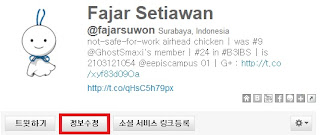
4. after you get in to your profile page, follow this picture by clicking the red part (there is no red sign in the website and i don't know what it means.. so just follow)
5. Click browse and select your image, and then click the upload button (like the red-signed part elow)
so, its done :D please share this website with your friends. Sorry for my lack English. Enjoy
Setelah sekian lama tidak update, akhirnya kali ini ada sedikit desire untuk menulis lagi di blog ini.
Kali ini akan membahas Cara agar bisa mengganti avatar twitter anda menjadi gambar png yang identik dengan background yang transparan. Sudah lama sekali sejak twitter mengubah kebijakannya tentang ketentuan avatar setiap usernya, salah satunya adalah melarang adanya avatar yang berketentuan agar tidak menggunakan avatar dengan background transparan. OK, langsung saja :
1. Siapkan gambar yang akan anda jadikan avatar, kali ini akan menggunakan gambar di bawah ini
2. Masuk ke http://twtkr.olleh.com/ dan klik Sign in with twitter lalu authorize app
3. Masuk ke profil anda di twtkr
4. Setelah masuk, pilih tombol yang saya beri tanda merah. (maaf, gk tau bacanya apa)
5. klik browse lalu pilih gambar dan klik tombol yang ditandai merah